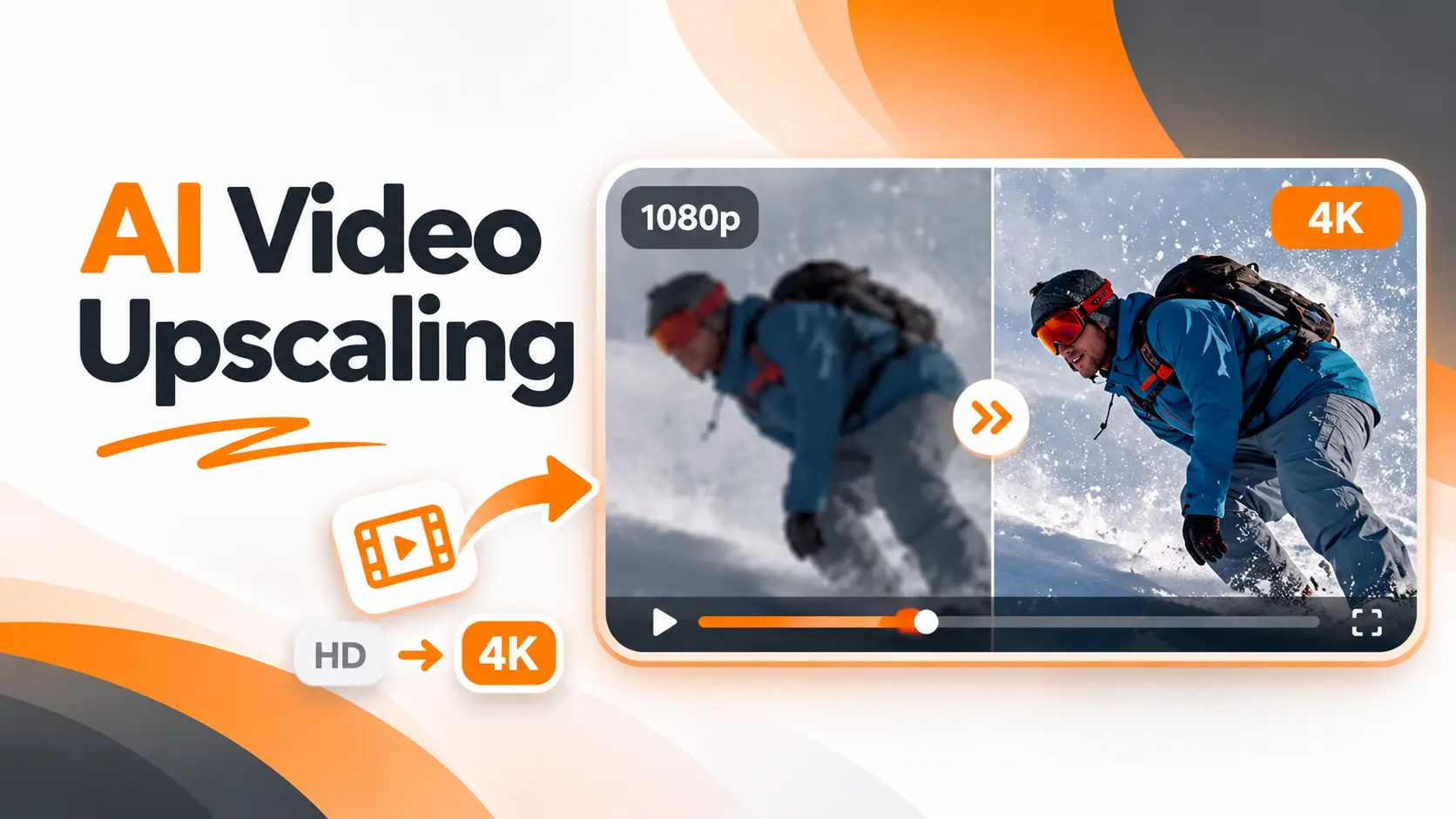
AI video upscaling increases the resolution of an existing video using artificial intelligence to reconstruct sharper frames and improve perceived detail. You can upscale 720p or 1080p footage to 4K using tools such as Topaz Video, Adobe Firefly, or Krea. The important part is checking whether the result actually looks better, because a larger video is not automatically a clearer one.
You do not need AI Video Generation upscale a video. Existing enhancement tools use trained models to process your footage. What matters most is choosing settings that improve the image without changing faces, textures, or movement in ways the original recording cannot support.
Upscaling Videos to 4K with AI
The most reliable approach is to upscale a short section of your video first, compare it with the original, and process the complete file only after approving the result.
Here is the workflow I recommend.
1. Check the Original Video Resolution
Before opening an AI video upscaler, inspect the source file.
A 1080p video contains 1920 × 1080 pixels. Standard 4K UHD contains 3840 × 2160 pixels.
Moving from 1080p to 4K doubles the width and height, producing four times as many pixels.
A 720p video requires a larger increase to reach the same output resolution.
The source quality matters as much as these dimensions. A clean 720p recording provides better information for enhancement than a heavily compressed file with missing detail.
2. Import the Video into an Upscaler
Open your selected tool and upload the original video.
For a straightforward browser workflow, Krea Video Upscale accepts MP4 files and lets users choose an available scaling factor.
For more detailed desktop processing, Topaz Video provides enhancement models and controls for output resolution, noise, and image detail.
I would work from the highest quality version of the original file rather than a copy downloaded from a social media platform.
This avoids making the enhancement model work with additional compression introduced during previous exports.
3. Select the Output Resolution
Choose the resolution that matches the final delivery requirements.
If a client needs a 4K video, select 3840 × 2160 for standard horizontal UHD footage.
If the video is intended for a smaller presentation window or mobile feed, a clean 1080p result can be a better choice than an aggressively enhanced 4K export.
I would not choose the highest available resolution simply because the software offers it.
The final display size and the condition of the original video should determine the target.
4. Choose the Enhancement Settings
Select an AI enhancement model or preset designed for the type of footage you have.
For example, Topaz Video includes a 4K preset using its Proteus model. Adobe Firefly provides Precise and Creative enhancement modes through Topaz Astra.
Precise mode is intended to maintain a natural appearance. Creative mode allows stronger visual enhancement.
For footage containing real people or products, I would begin with the more conservative option.
The objective is to improve clarity while preserving the appearance of what was actually recorded.
5. Preview the Video Before Exporting
This is the step I would never skip.
Choose a short section containing movement, fine details, and important subjects.
For a product video, inspect the logo, packaging, edges, and surface textures.
For a portrait, examine the eyes, hair, skin texture, and facial structure.
Watch the preview in motion rather than judging the result from a single frame.
If the image becomes unnaturally sharp or details change between frames, reduce the enhancement strength or try another model.
6. Export and Compare the Final Video
After approving the preview, process the complete file.
Choose an export format supported by your editing or publishing workflow. MP4 with H.264 or H.265 is supported by many video applications, although compatibility requirements differ.
Compare the exported video with the original at the same playback size.
A successful upscale should provide a visible improvement without introducing distracting changes to the subject or motion.
Best AI Video Upscaling Tools
The best AI video upscaler depends on the type of footage, available hardware, and how much control the project requires.
I would narrow the selection to five tools with distinct use cases.
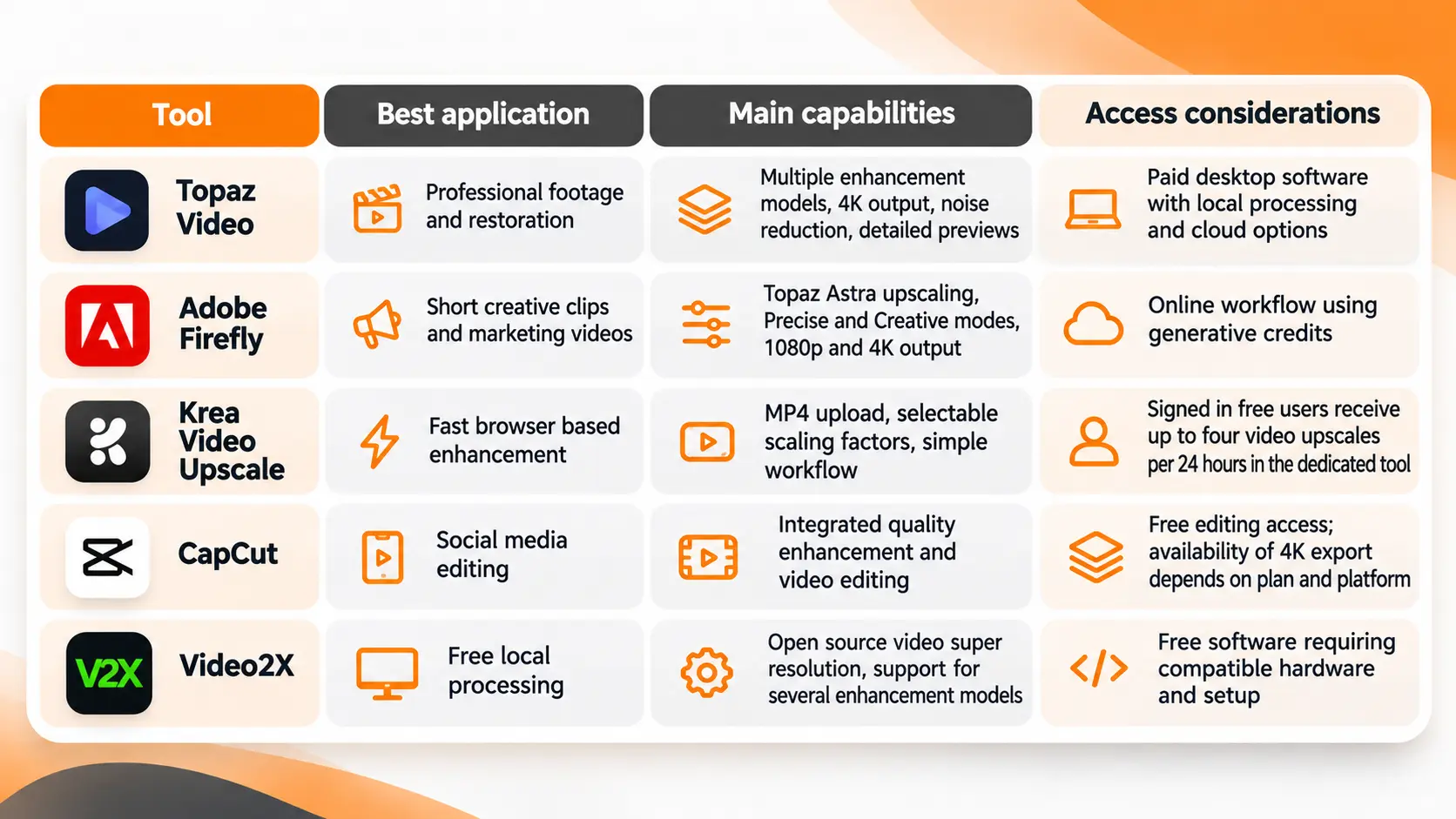
Topaz Video for Professional Upscaling
Topaz Video offers more control than a simple upload and download workflow.
Its enhancement models address different image characteristics, and its preview tools make it possible to inspect selected sections before exporting a complete project.
For a client project with significant restoration requirements, I would consider Topaz because the workflow supports comparing enhancement settings and reviewing details before committing to a long render.
It also provides separate processing options for frame interpolation, stabilization, and noise reduction.
Adobe Firefly for Creative Production
Adobe Firefly provides video upscaling powered by Topaz Astra.
Its workflow is particularly relevant when the video is part of a creative production that already involves AI generated clips or Adobe editing tools.
Precise enhancement prioritizes a natural look, while Creative enhancement introduces stronger visual refinement.
For branded content, the distinction matters. A product advertisement needs recognizable packaging and accurate design details, not just a visually impressive result.
Krea for Quick Online Upscaling
Krea Video Upscale provides a direct browser workflow.
Upload an MP4 file, select the available scaling factor, generate the enhanced video, and review the result.
The dedicated tool offers a free allowance for signed in users, making it useful for testing short clips before committing to more extensive production.
I would choose this route when the priority is a quick quality improvement without installing a full video restoration application.
CapCut for Social Video Editing
CapCut makes sense when upscaling is part of a larger editing task.
A creator preparing a promotional clip can enhance footage and continue working on the edit within the same application.
Its enhancement settings include HD, UHD, and 4K options in supported workflows.
Before starting, confirm whether the required export resolution is included in the account's available features.
Video2X for Free Local Processing
Video2X is an open source project for video super resolution and frame interpolation.
It supports multiple enhancement technologies and runs on Windows and Linux with compatible hardware.
This is the option I would consider for a technically comfortable user who wants to process footage locally without purchasing an enhancement subscription.
The tradeoff is setup complexity and dependence on the computer's processing capabilities.
Free AI Video Upscalers
Free AI video upscaling is possible, but the available options differ in processing limits and technical requirements.
Krea offers a limited number of free video enhancements through its dedicated online tool.
Video2X is free and open source, but it requires local installation and suitable hardware.
Other services provide trials or limited features rather than unrestricted 4K exports.
When evaluating a free AI video upscaler, I would check four things before uploading a project:
The maximum input duration and file size.
The available output resolution.
Whether the downloaded video contains a watermark.
Whether the generated output can be used for the intended commercial project.
A free preview is not the same as a free export.
For a short personal clip, a limited browser tool can be sufficient. For repeated professional work, the processing allowance and final output restrictions become more important than the absence of an initial subscription fee.
Upscaling 720p and 1080p Videos to 4K
The starting resolution changes how much new visual information the model must generate.
Upscaling 1080p to 4K
A 1080p video already contains a substantial amount of image information.
Increasing it to 4K requires the model to create additional pixels while maintaining the original shapes, textures, and movement.
This is a reasonable starting point for an AI upscale when the source is clean.
For example, consider a 1080p product video showing a smartwatch on a studio table.
I would upscale a short section to 4K and inspect the edges of the case, reflections on the glass, and any visible text.
If these details remain stable, the enhanced file can be considered for the final campaign.
If the watch face changes or the text becomes distorted, the additional sharpness is not worth the loss of accuracy.
Upscaling 720p to 4K
A 720p video contains less source information.
Moving directly to 4K requires the model to estimate substantially more detail.
For this type of file, I would compare a 1080p target with a direct 4K target before deciding which result to use.
The important point is to compare two outputs from the original file, rather than repeatedly enlarging an already processed version.
A good 1080p enhancement can be more useful than a 4K output containing exaggerated textures and unstable edges.
Choosing the Right Output Resolution
The question is not which resolution produces the largest file.
It is which resolution provides the best visual result for the intended screen and distribution platform.
If a clean source already satisfies the project's delivery requirements, additional enhancement may provide little practical benefit.
Upscaling should solve a visible or technical need, not become an automatic step in every editing workflow.
AI Video Upscaling vs Video Enhancement
AI video upscaling is one part of video enhancement.
Upscaling increases the number of pixels in the output. Other enhancement processes address different problems.
Denoising reduces unwanted grain or electronic noise.
Deblurring attempts to improve details affected by blur.
Sharpening increases the apparent definition of edges.
Frame interpolation creates additional frames to change the motion presentation or frame rate.
Stabilization reduces unwanted camera movement.
These operations should not be treated as interchangeable.
If a video contains heavy noise, increasing the resolution alone does not remove the underlying problem.
If the footage has motion blur, adding pixels cannot reconstruct every missing detail.
I would identify the visible issue first and then select the processing method designed to address it.
For footage requiring multiple corrections, the order of processing also matters. Noise reduction, deinterlacing, and upscaling should be planned according to the condition of the original recording.
Improving AI Video Upscaling Quality
The quality of an upscaled video is determined by more than how sharp a single frame appears.
Video contains movement, which means reconstructed details must remain visually consistent across consecutive frames.
Preserve Natural Facial Details
Faces are especially sensitive to excessive enhancement.
Strong processing can alter skin texture, eye details, and facial features.
For footage containing people, I would compare the enhanced face with the original at several moments throughout the clip.
The goal is to improve clarity without creating a different appearance.
Protect Fine Textures and Edges
Hair, fabric, grass, and detailed surfaces place significant demands on enhancement models.
A processing mode that looks excellent on architecture can produce an artificial appearance on skin or clothing.
I would inspect textured areas at normal playback size and at a closer viewing scale.
If fine details look painted, overly smooth, or unnaturally sharp, the enhancement settings need adjustment.
Check Movement Across Frames
A video can contain individually sharp frames and still look unstable during playback.
Small details may flicker, shift, or change texture between frames.
This is why a short moving preview is more useful than a comparison based entirely on screenshots.
Select a section with visible motion and examine whether the enhanced details remain consistent from beginning to end.
Upscaling Old Videos and AI Generated Footage
Old recordings and newly generated AI clips require different priorities.
Restoring Old Video Footage
Older recordings may contain interlacing artifacts, noise, compression damage, or limited resolution.
Before upscaling an interlaced source, I would address the interlacing using an appropriate processing workflow.
Otherwise, unwanted line artifacts can become more visible in the enlarged output.
For archival or documentary footage, a conservative restoration approach is important.
AI can generate plausible detail, but plausible detail is not proof of what the original camera recorded.
This distinction matters when footage has historical, journalistic, or documentary value.
Upscaling AI Generated Videos
AI generated clips present a different challenge.
Their resolution can be limited even when the scene itself looks visually convincing.
Upscaling can help prepare these clips for a larger display or a final production timeline.
For stylized or cinematic material, stronger creative enhancement can be considered when the visual changes support the intended art direction.
However, I would inspect character faces, object boundaries, and movement carefully.
An existing inconsistency in the generated video can become more noticeable after enhancement.
If the original clip contains major visual problems, regenerating the scene can be a better solution than attempting to correct everything through upscaling.
AI Video Upscaling Cost and Processing
The cost of AI video upscaling depends on how the selected tool processes footage.
Browser based platforms can use subscriptions, credits, or usage allowances.
Desktop applications require compatible hardware, and paid products can also involve subscription costs.
For a large project, I would evaluate the cost using the total footage that needs processing rather than the price of a single enhancement.
A thirty second social clip and a forty minute documentary place very different demands on a video upscaler.
Processing time also depends on the input resolution, target resolution, model complexity, video duration, and available computing resources.
Before processing an entire project, test a short representative segment and confirm that the result meets the production requirements.
That preview provides a practical basis for deciding whether further processing is worth the resources.
For confidential client footage, I would also review the provider's data handling terms before using a cloud service.
Local processing offers a different level of control over where the source files are handled, although the software's own licensing and activation requirements still apply.
Limits of AI Video Upscaling
AI video upscaling cannot guarantee the recovery of information that was never captured.
A model generates new pixels using patterns learned during training and information available in the original frames.
Those new pixels can improve visual appearance, but they should not automatically be treated as authentic recovered detail.
A heavily compressed face can become sharper while no longer matching the original features precisely.
Small writing, distant objects, and intricate patterns are particularly difficult when the source contains insufficient information.
Upscaling also does not guarantee that motion blur, poor focus, or severe compression damage will disappear.
For commercial and editorial projects, I would prioritize fidelity over maximum sharpness.
A slightly softer image that accurately represents the source can be more valuable than a visually striking result that changes important details.
Final Thoughts
AI video upscaling is useful when existing footage needs a higher resolution or improved visual clarity for its intended destination.
The right workflow starts with a quality source, uses settings appropriate to the footage, and tests the result before processing the complete video.
Topaz Video offers detailed restoration controls, Adobe Firefly supports creative enhancement, Krea provides a direct online workflow, and Video2X offers a free local alternative.
The best result is not necessarily the one with the highest resolution. It is the version that improves the viewing experience while preserving the information and visual character of the original footage.
FAQ
Can I upscale a video without changing its audio?
Yes. Some video applications allow the original audio stream to be copied into the enhanced file without reencoding it. Other services process the audio during export. Check the tool's audio settings and compare the exported sound with the original recording.
Can I upscale a vertical video without making it horizontal?
Yes. Use an output format that preserves the original aspect ratio. A vertical UHD video can use 2160 × 3840 pixels. Make sure the upscaler supports the required orientation and does not automatically crop the source.
Can AI upscale a video with subtitles already on it?
Yes, but subtitles embedded directly into video frames are processed as part of the image. Their edges and letter shapes can change during enhancement. For accurate captions, use the original subtitle file or add verified subtitles after upscaling.
Can I upscale someone else's video and use it commercially?
Upscaling does not transfer copyright or grant commercial usage rights. Permission or another valid legal basis is required when the intended use involves protected material. The enhancement platform's terms must also be considered.
My video won't upload to the AI upscaler. What should I do?
Check the supported file format, codec, duration, and maximum upload size. If the video uses an unsupported format, create a compatible copy using a trusted video converter while preserving the original file. MP4 with H.264 is a widely supported option, but the exact requirements depend on the service.

Fatemeh Jahangard
Technology & AI Writer at PinerookFatemeh Jahangard covers AI, emerging technologies, and digital innovation for Pinerook, focusing on how technology shapes startups and industries.
 Seen first.